Understanding Media Manager
Media Manager provides centralized content management for all media on your portal. You can upload new media, track drafts, manage published content, handle approvals, and moderate comments from a single interface.
Access Media Manager
- Select the navigation menu.
- Expand Admin.
- Select Media Manager.
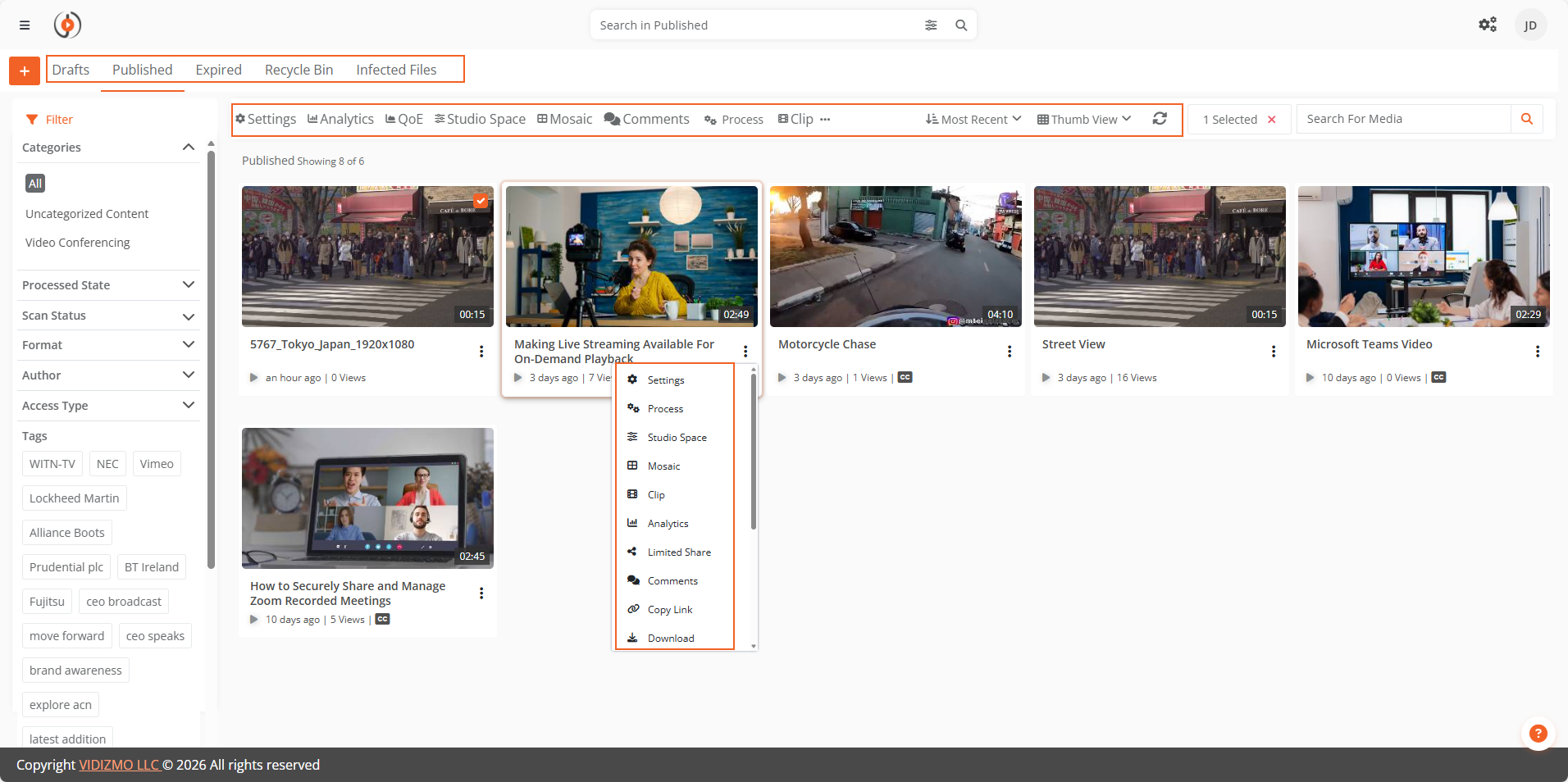
Media Tabs
Media Manager organizes content into the following tabs based on media status:
| Tab | Description |
|---|---|
| Add New | Upload new media to the portal. |
| Review | Moderate user-generated content pending approval. Requires Content Moderation to be enabled. |
| Drafts | Manage unpublished media saved for later. |
| Published | View all published media chronologically. Unpublish content as needed. |
| Expired | Lists media that has reached its configured expiry date. Republish or delete as needed. |
| Archived | Contains media moved to archive storage tier. Requires archive feature to be configured. |
| Recycle Bin | Holds deleted media for recovery. Media is permanently purged according to content lifecycle policy. |
| Infected Files | Lists files flagged by malware scanning. Displayed when malware scanning feature is enabled. |
| Comments | Moderate comments across all portal media with Approved, Pending, and Rejected categories. Requires Comment Moderation to be enabled. |
Filters
Filter content using the left panel options:
- Format - Filter by media type (Video, Audio, Document, Collection, etc.)
- Author - Filter by content creator
- Access Type - Filter by access permissions
- Tags - Filter by metadata tags
- Custom Attributes - Filter by configured custom attributes
Action Bar
The action bar provides quick access to common operations and view controls:
Quick Actions (for selected media):
- Settings - Configure media settings
- Analytics - View usage statistics
- QoE - View Quality of Experience report
- Mosaic - Create mosaic from selected media
- Additional shortcuts from overflow menu for bulk operations
View Controls:
- Most Recent - Sort dropdown to order media by date, title, views, etc.
- Thumb View - Toggle between thumbnail and list view
Overflow Menu
The overflow menu (⋮) on each media item provides additional actions. Available actions vary based on media type, status, and user permissions.
| Action | Description |
|---|---|
| Settings | Open media settings. |
| Process | Reprocess media for transcoding or insights. |
| Clip | Trim or segment media. |
| Studio Space | Add interactive elements. Displayed when feature is enabled. |
| Redact | Apply redaction to video content. |
| Comments | View media comments. |
| Embed | Get embed code. |
| Copy Link | Copy shareable URL. |
| Share | Share media with users or groups. |
| Limited Share | Create time-limited or restricted share links. |
| Download | Download media file. |
| Copy | Copy to other portals. |
| Re-upload | Replace media file. |
| Media Info | View technical details. |
| Lock/Unlock | Prevent or allow modifications. |
| Delete | Move to Recycle Bin. |
| Publish/Unpublish | Change publication status. |
| Approve/Reject | Moderate pending content (Review tab). |
| Restore | Recover from Recycle Bin. |
Bulk Actions
Select multiple media items to perform bulk operations:
- Publish or unpublish multiple items
- Delete selected media
- Copy to other portals
- Change category
- Edit settings
Use keyboard shortcuts (Ctrl/Cmd + click) or the selection checkbox for bulk selection.